How Immuta Intents Deliver Governed, Task-Specific Access in Databricks Unity Catalog

Share on


Data access should reflect what people and AI agents are trying to accomplish, not force every request through static roles and ticket queues. Immuta Intents translate business goals and context into policy-driven, governed access, helping deliver the right data quickly while limiting exposure. The result is faster decisions, safer AI adoption, and a clear audit trail showing who accessed what, why, and under which policy.
This blog will cover the new Immuta Intents feature in two parts. First, an overview of the feature and how it provides scoped-down, end-to-end auditable access to perform a given task. Next, I will share a step-by-step example of how to use the Intents feature. This is meant to be a practical guide that can help you better understand the Intents functionality, what new capabilities it unlocks, and how to use it. We look forward to hearing your feedback on Intents and how we can extend its functionality to further improve your day to day access provisioning needs.
Intents, launched in August 2026 for Databricks Unity Catalog, delivers three key capabilities for Immuta customers. First, Intents offers scoped-down, exclusive access where birthright attributes are suspended while the Intent is active, thus targeting only the data needed to perform the task at hand. Second, Intents can be self-selected within Databricks, allowing users to easily move between their default identity and any of their Intents without any need for outside support. Third, Intents create a clear audit trail where query access logs report who the query was executed by and under what intent. This helps to answer auditor questions about why data was accessed.
To further explain how Intents fits into Immuta’s existing offerings, let’s look at how it fits alongside birthright access and the Request app. For well-defined and persistent access, birthright groups, attributes, and policies are the right pattern. In cases where usage is more dynamic and situational, the Request app provides a simple interface for users to request access to data and for stewards to approve those requests. Intents provides a new vehicle for access provisioning, where the Intent offers task-specific, self-selected permissions to your end users. Governors still create the Intents, specify their attributes, and define the groups that can assume the Intent. After that, users can switch to the intent easily in Databricks to carry out a task, and then easily return to their birthright access when finished. The audit trail captures all the context needed to know when the user is acting under an Intent and when they are acting as themselves.
In the following example I will walk through creating two Intent groups and showing how each can be leveraged by end users. This will include an outline of the use case and screenshots to help you better visualize how Intents work mechanically and how you could use them in your own environment.
Use case description: In this example, a governor will create two different Intents to assist with clinical trials at a pharmaceutical company. In this case our research scientists have birthright access that differs from what is required to carry out the clinical trial. By creating intents, they can set up targeted permission for just the clinical trial without changing their existing birthright access. The first intent grants access to Clinical Trial A while the second is for Clinical Trial B. Here is an outline of the key attributes and groups that govern access to this data.
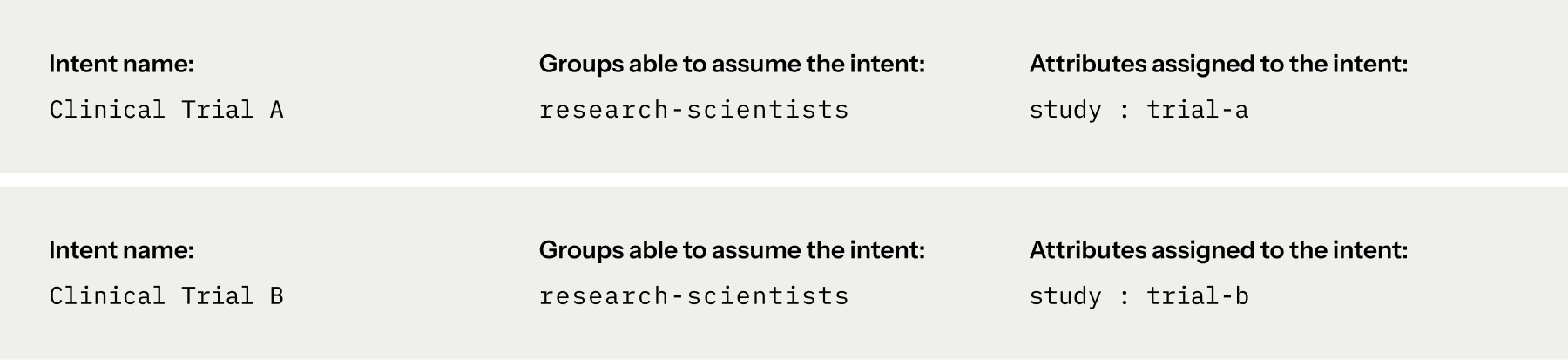
Importantly, because the research-scientists group is assigned to both of the intents, members can assume the intents for both Clinical Trial A and B. The separation that intents provide, that is key to use cases like this, is that each of these intents are exclusive and only one is active at a time. This creates clear separation for when the research scientists are acting under Clinical Trial A or Clinical Trial B.
Creating the intents themselves is as simple as specifying the parameters above, the name, groups, and attributes of the intent. There is also a description field to add more information about the intent.
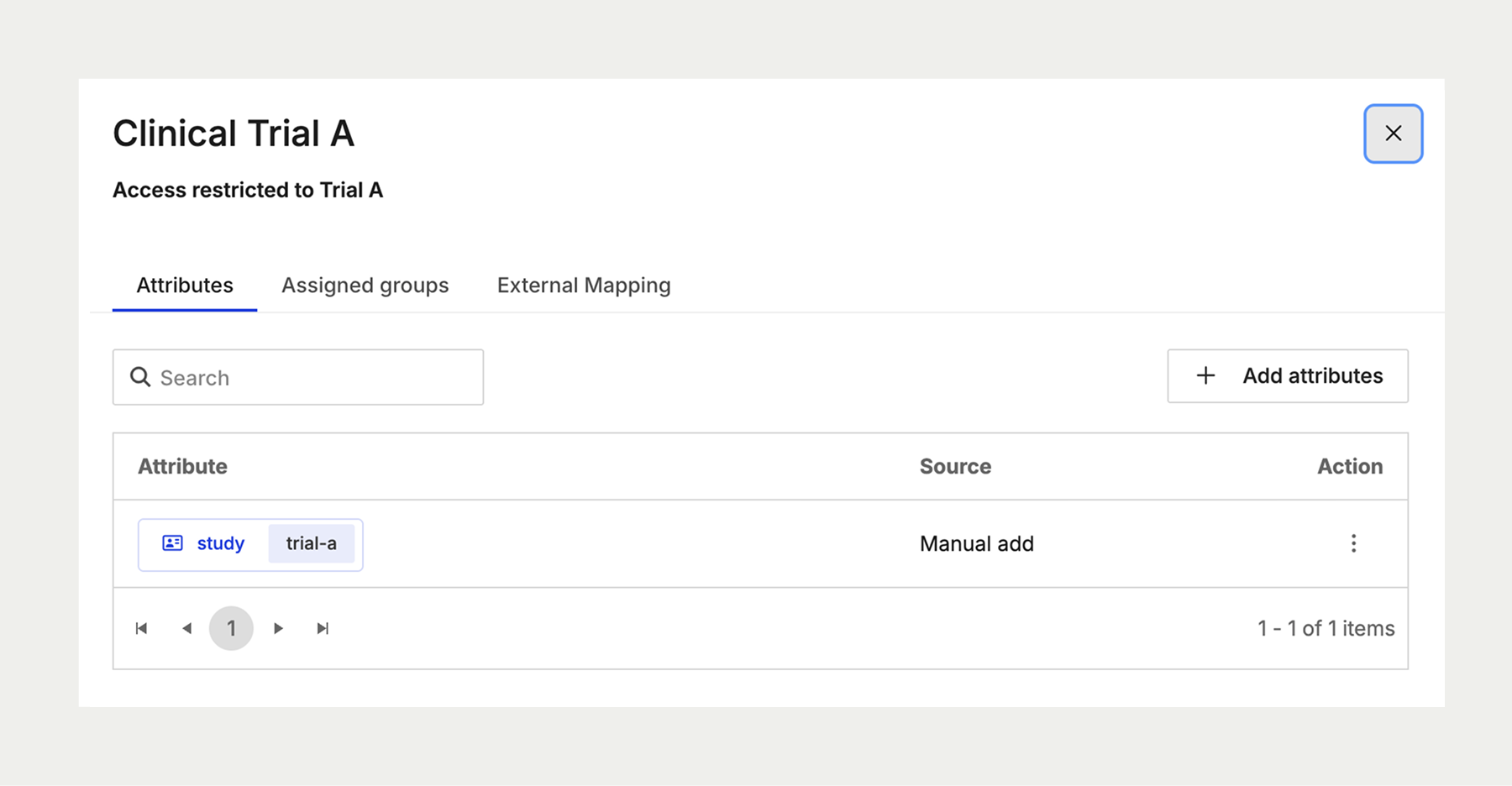
Since a user’s birthright access is suspended when acting under an intent, only the intent’s attributes and the group used to assume the intent are relevant to policy evaluation. As you consider your own use cases for intents, the attributes assigned to the intent are thus critical to differentiating intent access from birthright access in your organization. If a given set of attributes is needed to access sensitive data, and those attributes are only assigned to one or more intents, then you know that all access will be carried out via the intent. This has the added benefit of supplying richer audit logging and precluding access from anyone outside the intent group. Intents have a similar benefit with data policies, as you can set up policies such that unmasked data is only accessible when acting under an intent.
Next, let’s create the policies that will grant access to users acting under the intent in Databricks. To access the data associated with Clinical Trial A and B, we will need access to those tables and to satisfy any applicable masking exception criteria. If your organization already has existing policies, you would have validated them ahead of creating the intents. In this case, we are setting up both the Intents and policies for newly created data.
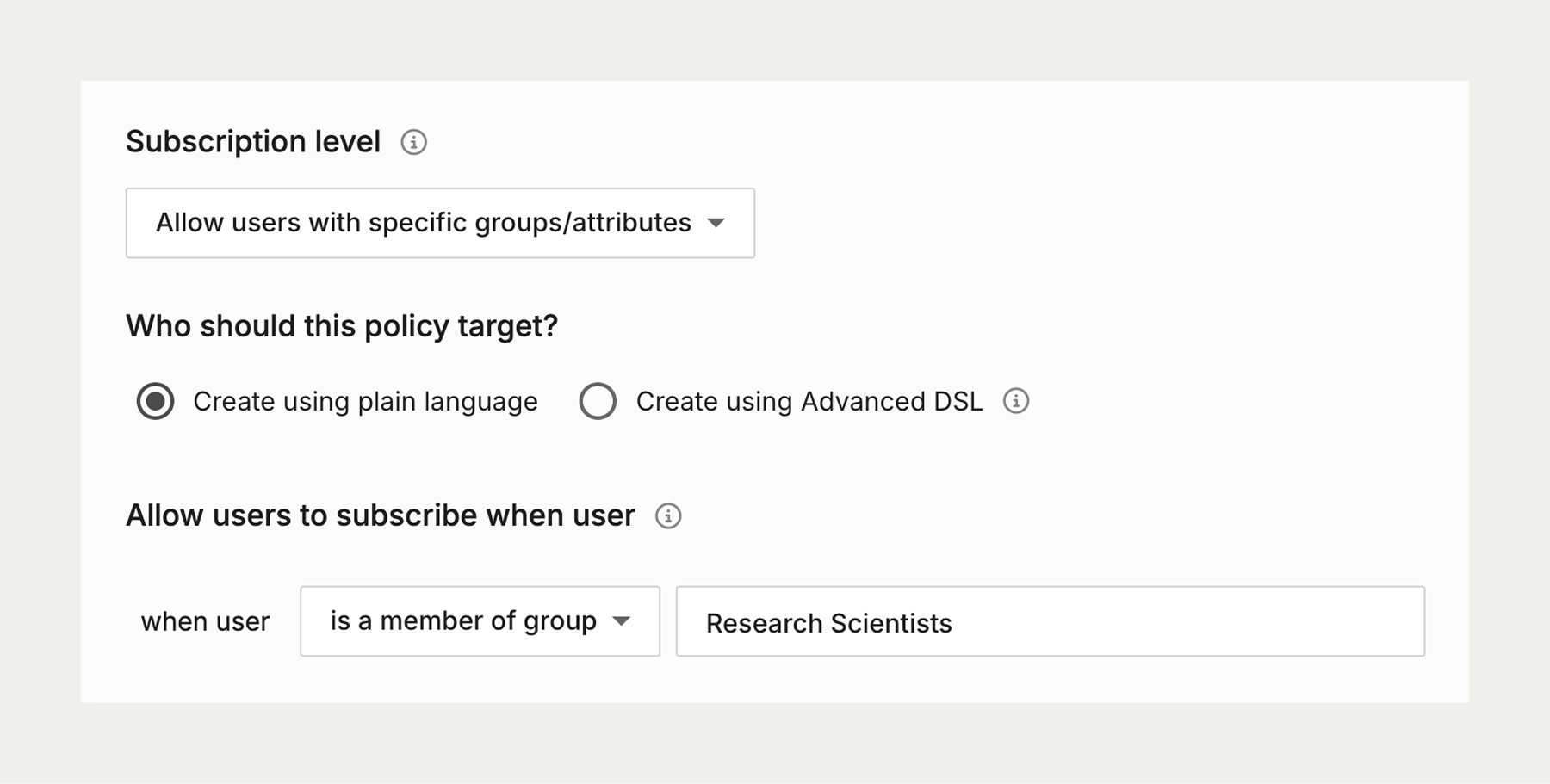
To access these tables, we need a subscription policy that will grant access to the appropriate clinical trial. We can do this via groups or attributes, and in this case I will demonstrate with groups to show you how we can leverage both groups and attributes with intents in different ways.
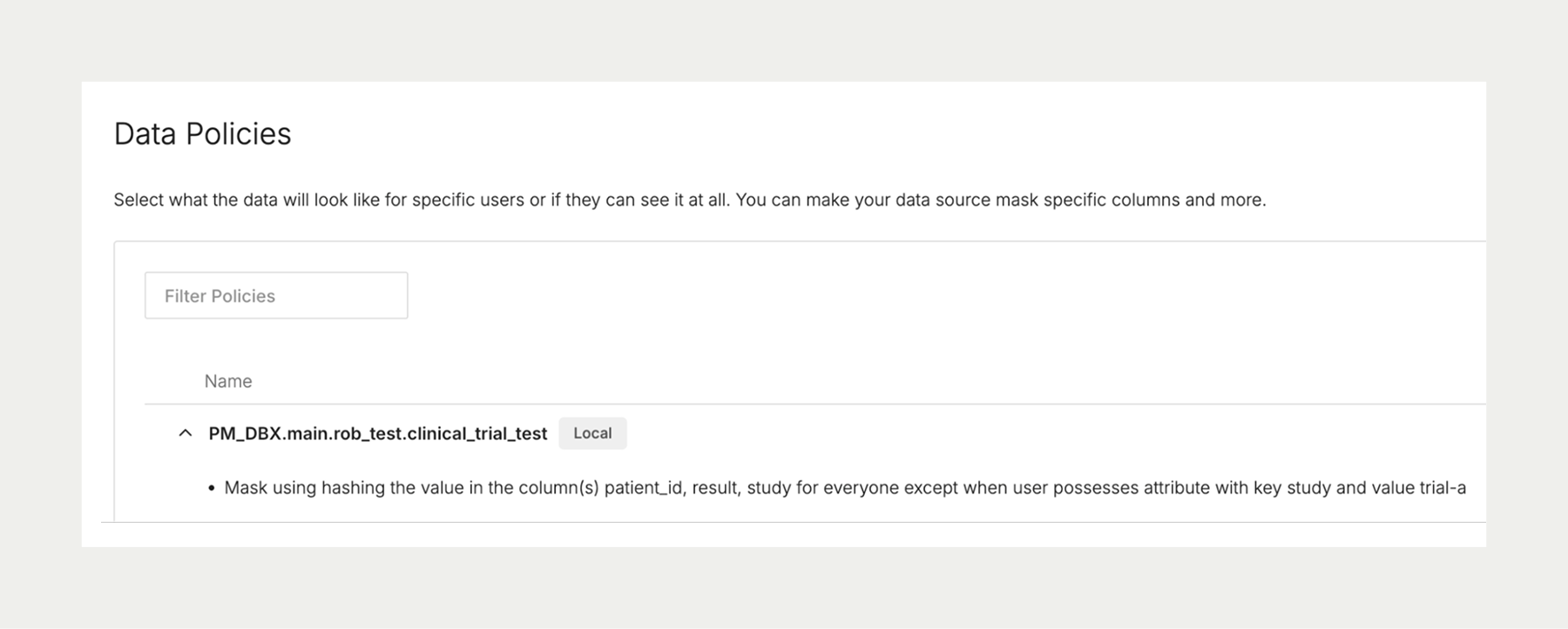
Since Clinical Trial A and Clinical Trial B intents are both accessible to research scientists, we will use masking to hide information not relevant to the specific clinical trial the user is acting under. For this sample data set, we will mask the values in all columns using hashing. When acting under the intent for a given study, all values will appear in the clear. You could also set up your intents so that some intents allow full access while others are limited in what they can see within a dataset.
Now that we have our intents and policies in place, let’s look at how this comes together in Databricks when running queries. NOTE: You need to assign compute to the Databricks intent groups before running these queries.
First, let’s orient ourselves to the role switcher and how we will toggle between running queries as Rob and running them under the intents.
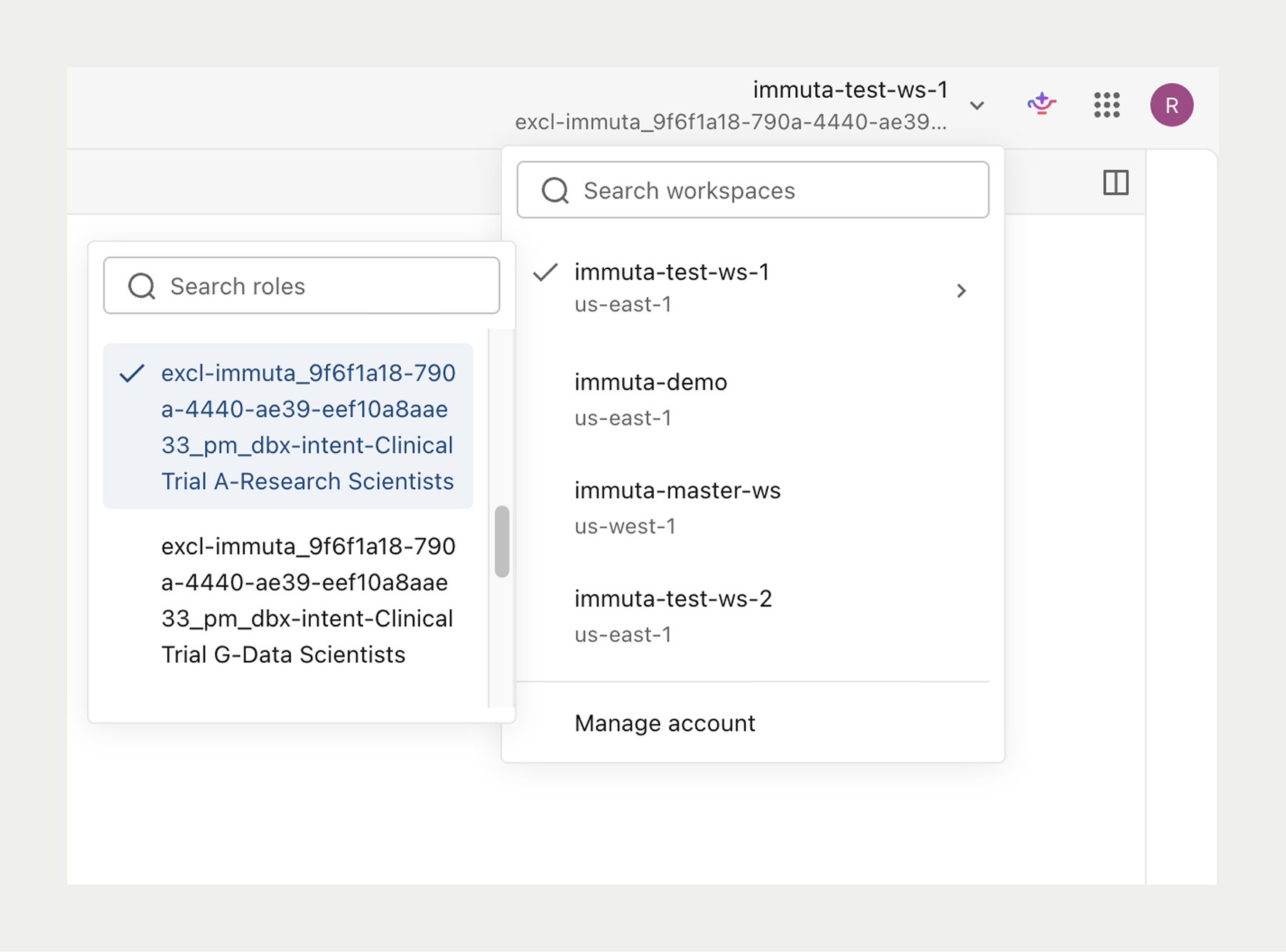
Now let’s run a few simple queries to see how the groups and attributes control access. For any user or group without research-scientists group membership, the query will fail right away, with no access at all to the table. For those in research-scientists but without the necessary clinical trial attribute, all returned values will be hashed. Lastly, when both the group and attributes are present for clinical trial A, the full results will be returned unmasked.
When I query as Rob, on the Clinical Trial A dataset, I see the hashed results:
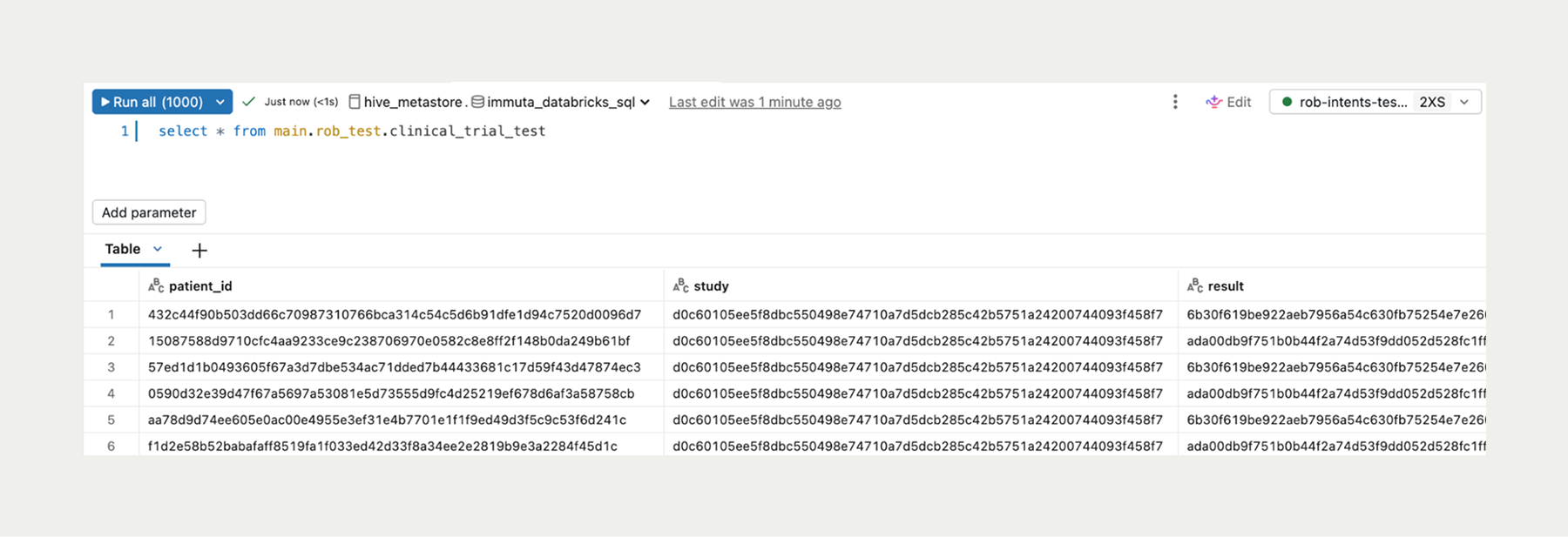
This is because I am a member of research-scientists but lack the Trial A attribute needed to see the unmasked data. When I switch to the Clinical Trial B intent, and try the same query, we see the same result set as Rob, lacking the attribute needed to see the unmasked data.
If I run the query without having the proper group membership at all, I receive this error:
[INSUFFICIENT_PERMISSIONS] Insufficient privileges:
Principal 'excl-immuta-intent-Clinical Trial C-Data Scientists' does not have SELECT on Table 'main.rob_test.clinical_trial_test'. SQLSTATE: 42501
After using the role switcher to move to the Clinical Trial A group, the same query yields:
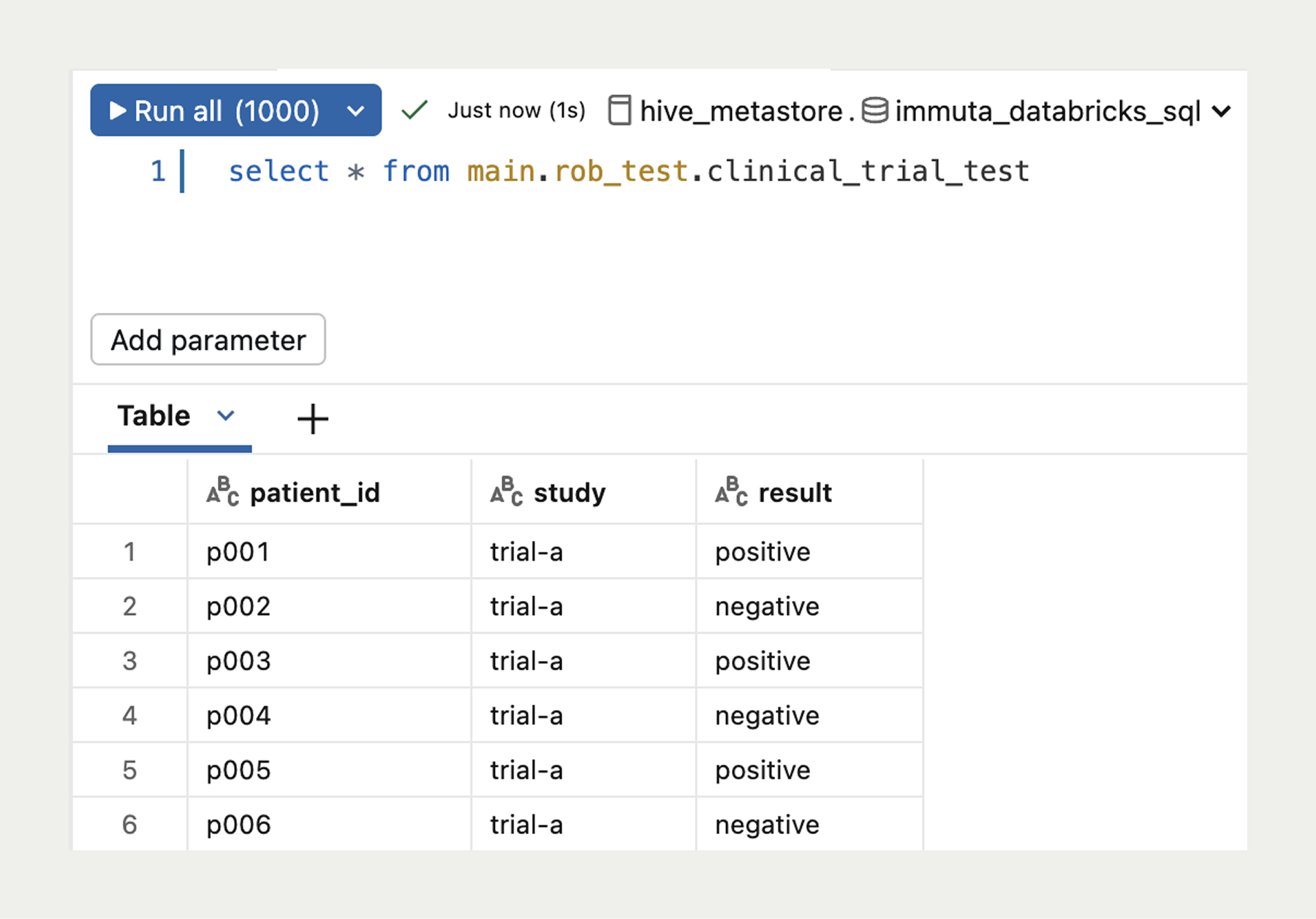
This makes sense as we are pulling Clinical Trial A data and this is the Clinical Trial A intent with the research-scientists group needed to read the data and the attribute needed to see the data unmasked.
We hope this step by step walkthrough of intents helped you to further understand the feature and how it can benefit your company. Intents offers incredible flexibility in allowing users to self-select their active task, and in leveraging both the groups and attributes of the intent to grant access. We look forward to connecting with you to further discuss the feature and how best to leverage it for new and existing use cases.
For those already familiar with Projects and Purposes, here are a few key differences. Projects require you to add data sources and to switch your active project via the Immuta UI or API. Intents uses policies, groups, and attributes you are already utilizing across your environment to control data access and is self-selected in the data platform. Purposes requires Project creation to operate and grants access that is additive to birthright access. Intents are set up with a single step and the access is exclusive to the intent usage, birthright access is suspended.
Yes, Intents can work alongside your existing Purposes and Projects in Immuta. As we continue to roll out Intents for more data platforms, we will deprecate the usage of Projects and Purposes.
When designing how to use Intents in your environment, consider the impact of suspending birthright attributes and groups when users are acting under an intent. While the group used to assume the intent is still applicable, all other groups and user attributes are suspended. By leveraging attributes on users and attributes on intents, only one set of those is active at any time. This adds to the exclusive nature of the access granted via intents in Databricks, and gives you added control and flexibility when utilizing intents for use cases across your company.